
Your own instructor account and a message about an assigned lesson.
Follow these steps
Open changes
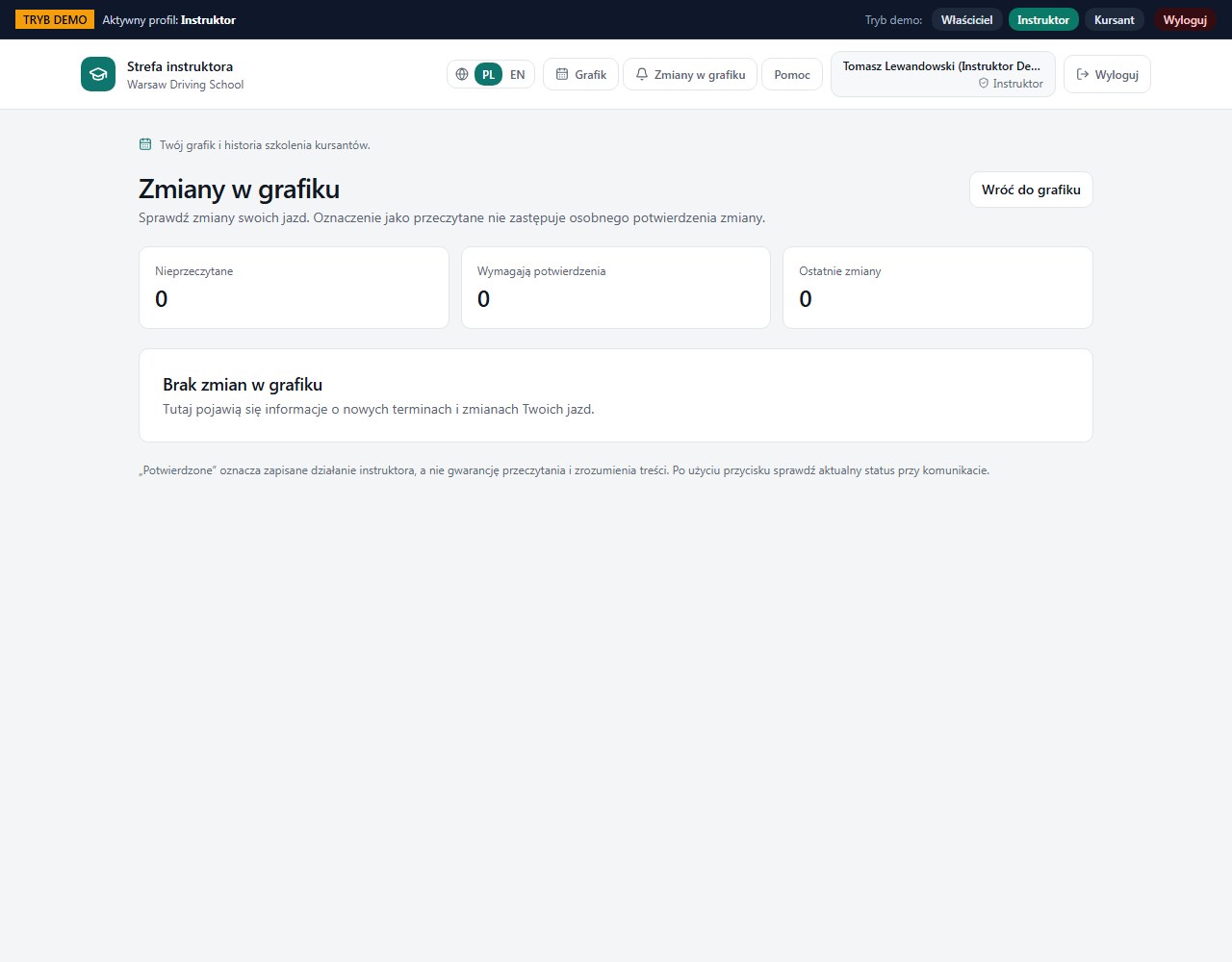
Open Schedule changes. Check unread items and those requiring confirmation.
Compare the data
Read the change, student and current time. After a reschedule, do not rely on an old screenshot or an older phone notification.
Record read status
Select Mark as read. This records reading, not the separate confirmation.
Confirm the required change
If confirmation is required, select Confirm change after reading the current data. Do not substitute the read action for confirmation.
Verify the stored state
Refresh the list and compare indicators. The office should be able to distinguish delivery, read and confirmation. If you cannot attend the new time, contact the office.
What to enter and what it means
- Delivered
- The information was made available to the recipient.
- Read
- The message read state was recorded.
- Confirmed
- A separate confirmation action was stored; a loading indicator disappearing is not proof on its own.
How to verify it worked
The message has the correct read state and, when required, a separate confirmation.
Opening a phone screen alone is not evidence that the instructor accepted the change.
An empty list after a successful load is normal. A list read error must be handled separately.